
Guide
Connect your AI in five minutes.
Once per AI: connect Claude or ChatGPT to our skill server, sign in with your email address, and your AI can use the Business Design Skills in every chat.
- Claude & ChatGPT
- Sign in by email
Orange Hills skill server
Business Design Skills
- Exploration
- Target Groups
- Discover
- Validation Plan
- Interview Guideline
Your material stays with your AI.
Before you start
-
Approved access
Request access if you have not done so yet. We approve every request by hand and let you know by email.
-
An AI that supports custom connectors
Claude does on every plan; on the Free plan you can add one custom connector. ChatGPT does on the web and in the desktop app, depending on your plan: Business, Enterprise, Edu and Pro offer it. If you can't find the option, your plan does not include it.
Step by step
Pick your AI. Follow the steps.
The steps are the same on claude.ai and in the Claude desktop app.
-
1
Open the connectors
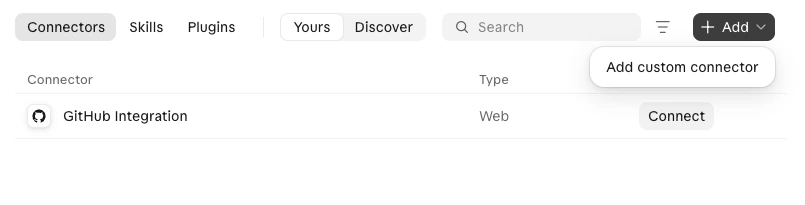
Open Customize → Connectors, select Add and then Add custom connector.
-
2
Add the server
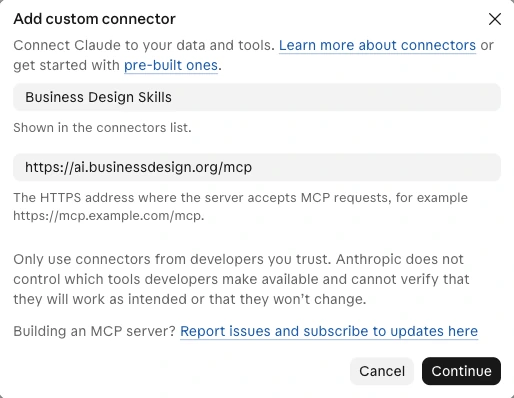
Enter Business Design Skills as the name and this address as the URL, then select Continue.
https://labs-ai.businessdesign.org/mcpYou also find the address in your approval email.
-
3
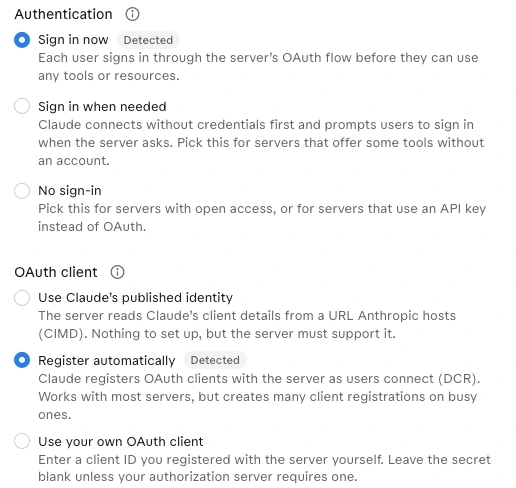
Keep the sign-in settings
Claude detects how our server signs you in. Keep Sign in now and Register automatically and select Add.
-
4
Sign in
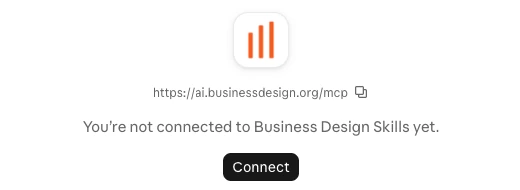
Select Connect. Our sign-in page opens: enter the email address you requested access with; it doesn't need to match your Claude account. Open the sign-in link we send you in the same browser. Confirm, then allow access.
-
5
Start a chat
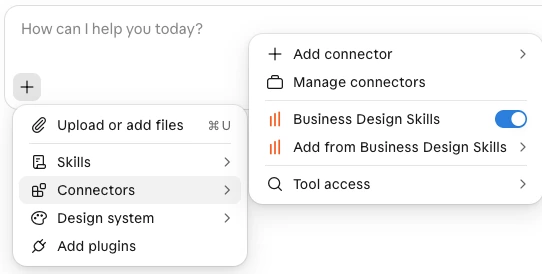
In a chat, open the + menu, switch on Business Design Skills under Connectors and describe your task. Under Add from Business Design Skills, you find a starting prompt for each skill.
Team or Enterprise?
In a Team or Enterprise organisation, the owner adds the connector once under Organization settings → Connectors. Everyone else connects it under Customize → Connectors, starting at step 4.
The result
Claude shows the result as an artifact next to the chat.
The steps follow the ChatGPT desktop app. On chatgpt.com, the same dialog sits under Plugins. The mobile apps can't add custom connectors.
-
1
Open Plugins
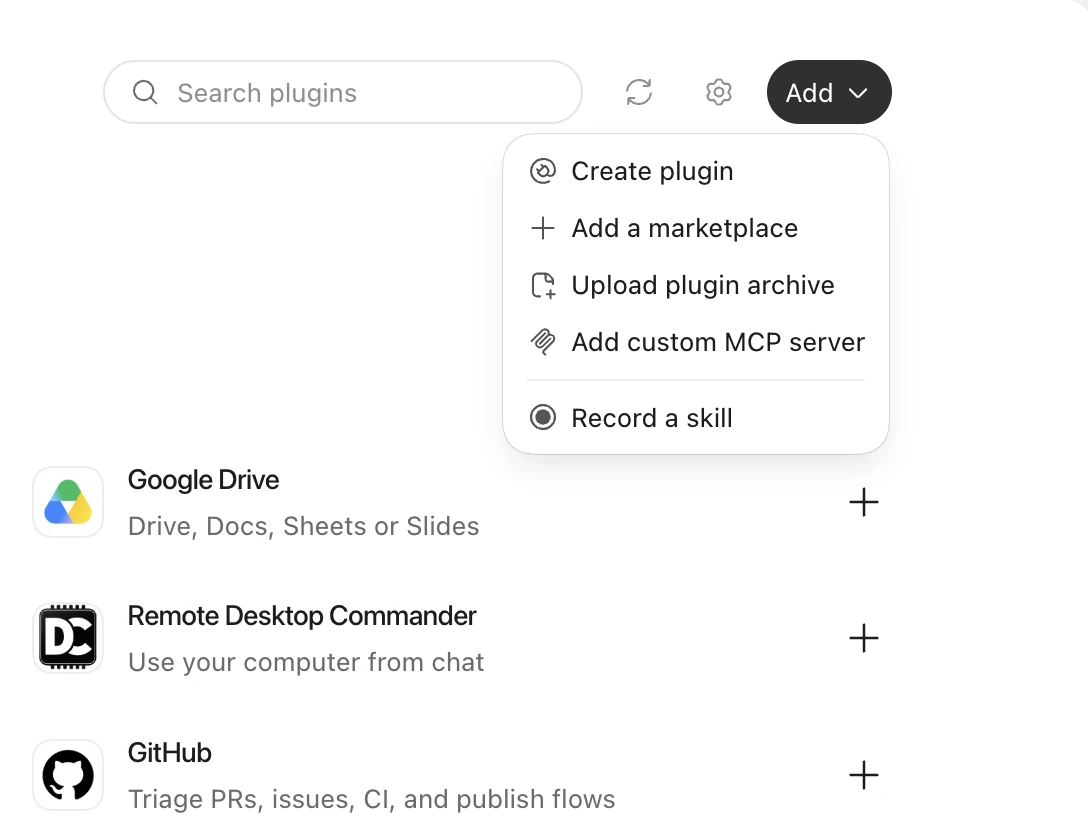
Open Customize → Plugins, select Add and then Add custom MCP server.
-
2
Add the server
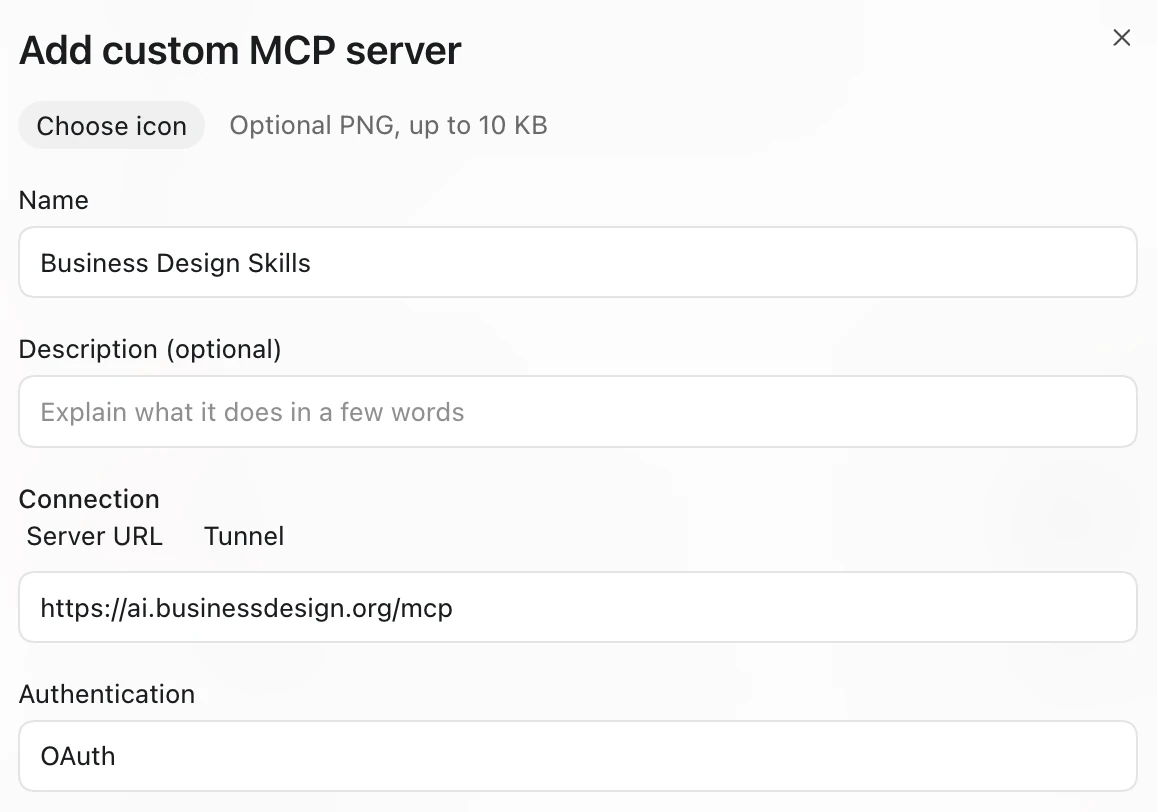
Enter Business Design Skills as the name and this address as the Server URL. Choose OAuth for authentication, tick I understand and want to continue and select Create as a plugin.
https://labs-ai.businessdesign.org/mcpYou also find the address in your approval email.
-
3
Sign in
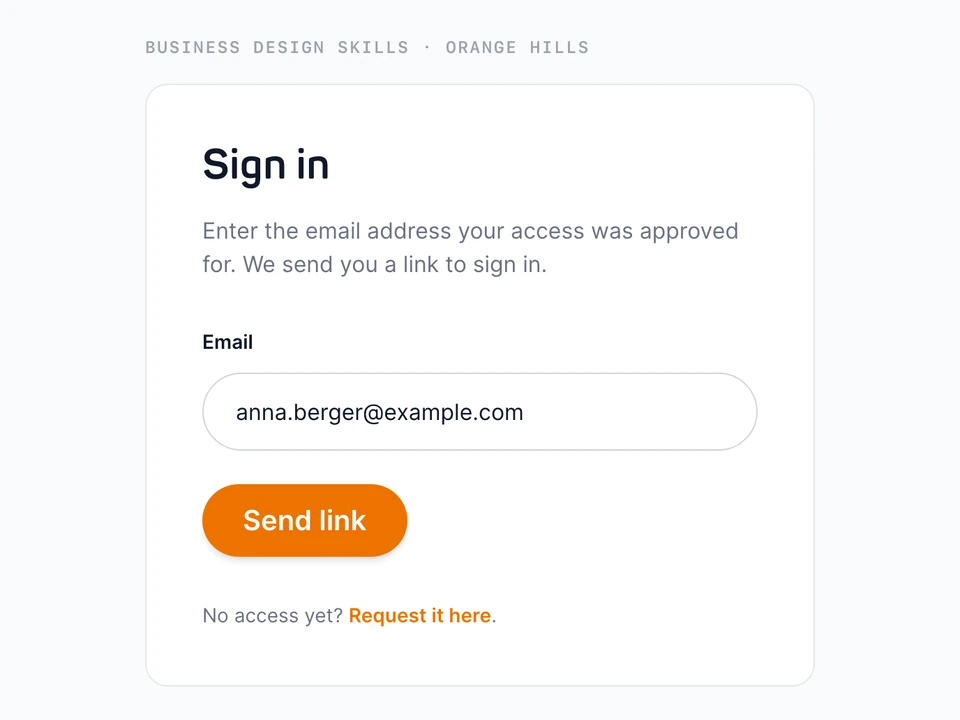
Select the link ChatGPT shows next. Our sign-in page opens: enter the email address you requested access with; it doesn't need to match your ChatGPT account. Open the sign-in link we send you in the same browser. Confirm, then allow access.
-
4
Start a chat
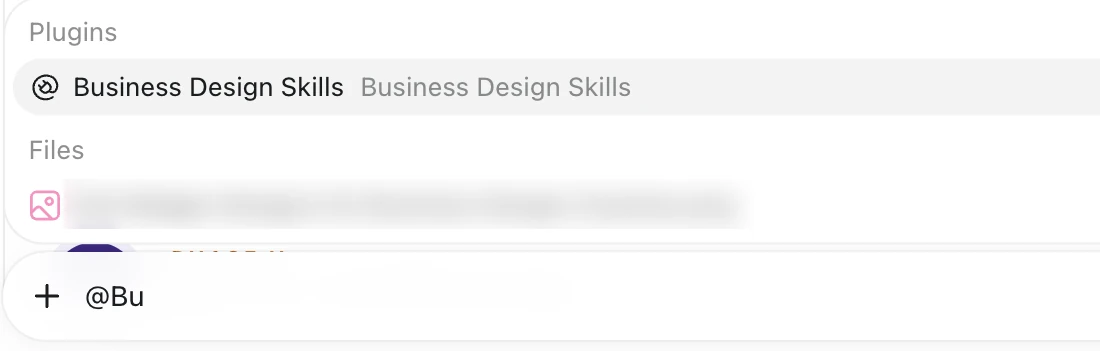
In a new chat, type @, select Business Design Skills and describe your task.
Business workspace
In a Business workspace, only admins and owners can add the plugin.
The result
If the result arrives as code rather than as a page, open it in canvas and select Preview.
Your data
Your material stays with your AI.
Instructions only
The skill server hands out instructions, nothing else. Your charter, your interviews and your results stay with your AI — and with the terms of your AI provider.
What we store
To manage your access, we store your name, your email address, your company and what you want to use the skills for (see our privacy policy).
30 days
You stay signed in as long as you use the skills. After 30 days without use, sign in again.
Q & A
My AI does not use the skills.
Name them in your prompt: "Use the Business Design Skills: …". In Claude, pick the skill from the + menu and check that the connector is switched on in this chat. In ChatGPT, select it with @.
The sign-in link does not work.
It is valid for 15 minutes and works once. Request a new one and open it in the browser in which you started.
I can't find the option to add a connector.
Your plan or your organisation does not allow it (see Before you start). Ask your administrator.
How do I remove my access?
Remove the connector in your AI. If you want us to delete your account too, write to support@orangehills.com.